
Antigravity is an agentic development environment designed to work alongside you as an active collaborator rather than a passive code assistant. Unlike traditional AI tools that only generate snippets of text or suggest small edits, Antigravity can read and modify files in your project, run terminal commands, and access external resources on the web. This means it is capable of carrying out multi-step tasks, refactoring large sections of code, installing dependencies, or even restructuring parts of a repository with minimal supervision.
Because Antigravity operates with this level of autonomy, it effectively acts as an agent within your development environment. The permissions you grant it determine how much control it has over your system. With the right configuration, it can dramatically increase productivity by automating repetitive tasks and accelerating complex workflows. However, that same capability introduces real considerations around security, data privacy, and operational risk. Understanding what Antigravity can access, execute, and modify is essential before integrating it deeply into your development process.
This guide provides a structured overview of Antigravity’s security model, risk profiles, and configuration options. Its purpose is to help you make informed decisions about how much agency to delegate to the AI, and under what conditions. By centralising best practices and clearly outlining the implications of each setting, this guide enables you to balance convenience with control, ensuring that Antigravity remains a powerful assistant rather than an unmanaged risk within your development environment.
Video introduction to Vibe Coding
🛡️ 1. Core Security & Strict Mode
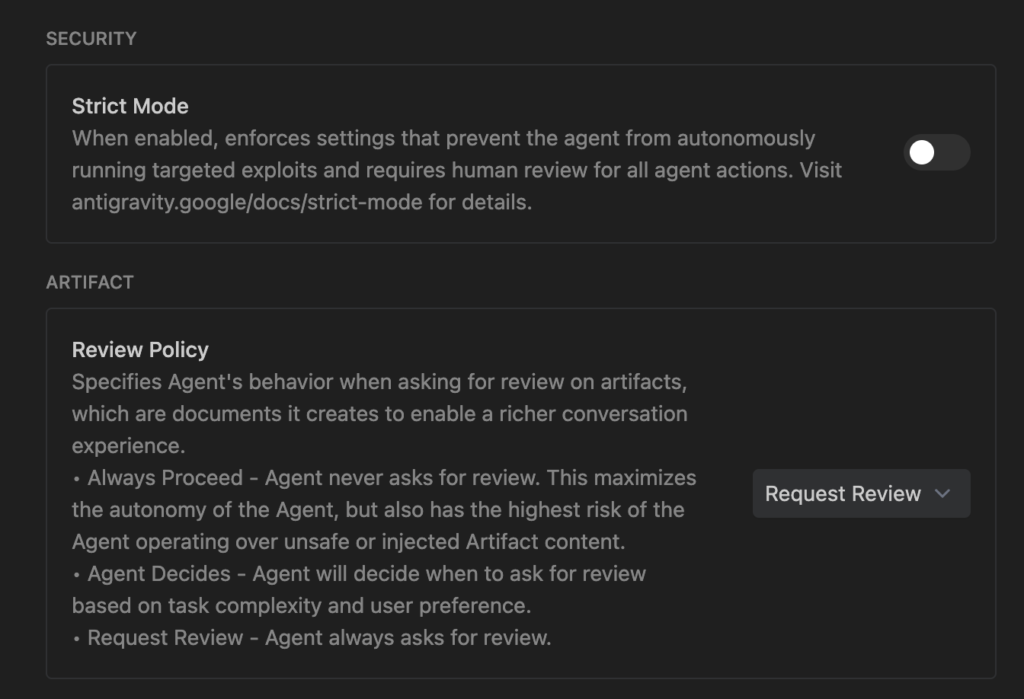
Strict Mode
- What it is: The master-toggle for high-risk environments. It provides a “hard override” for other settings.
- Security Behavior:
- Forced Request Review for all Terminal, Artifact, and Browser actions.
- Ignores your Allow List (all commands must be manually approved).
- Workspace Isolation: No access to files outside the current project or listed in .gitignore.
- Automatic Sandboxing: Network access is denied for terminal commands.
- When to use: Auditing untrusted repositories or working on highly sensitive intellectual property.
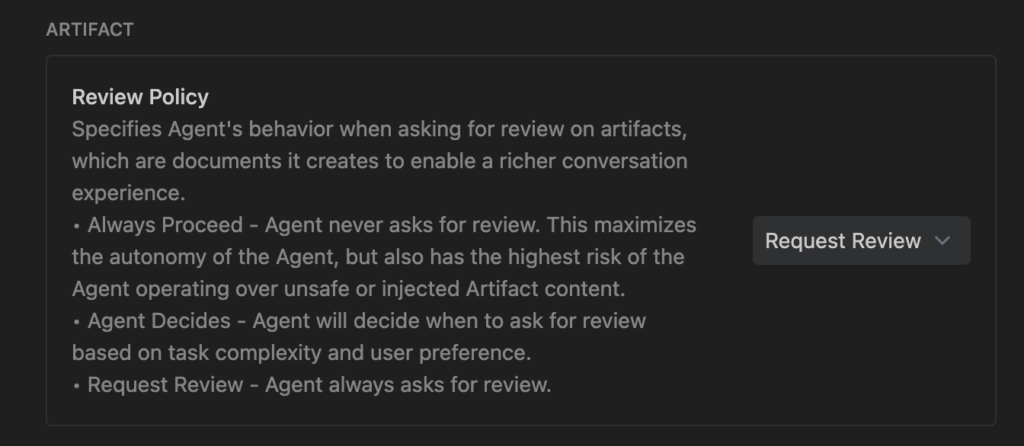
📄 2. Artifact Settings
Review Policy
Specifies behavior when the agent creates documents (plans, code files, or UI previews).
- Always Proceed:
- Risk: Highest. The agent operates over potentially unsafe or injected content without stopping.
- Use Case: High-velocity prototyping in trusted projects.
- Agent Decides:
- Risk: Moderate. Relies on the model’s judgment of “complexity,” which might miss a subtle exploit.
- Request Review:
- Risk: Lowest. You see every blueprint before it’s “built,” preventing logic bombs.
🐚 3. Terminal Security
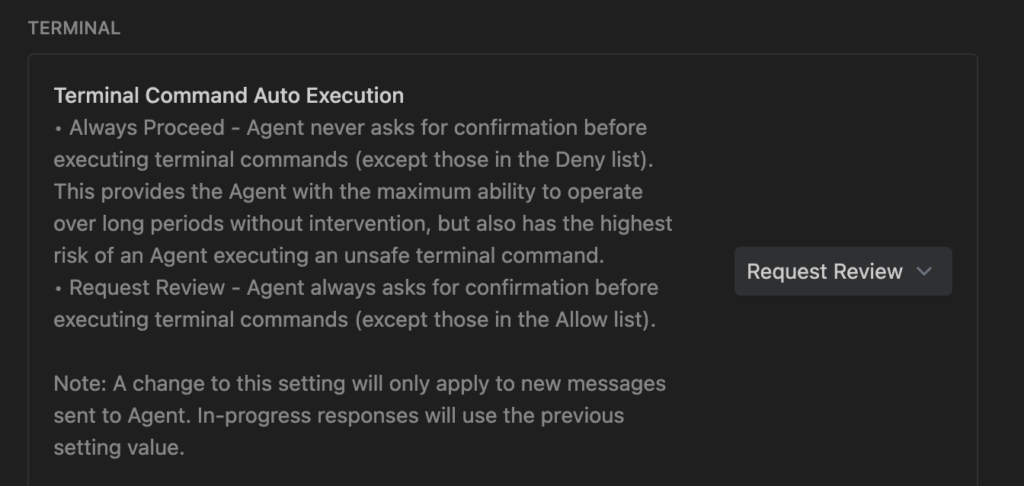
Terminal Command Auto Execution
The terminal is the highest-risk area as it operates with your user privileges.
- Always Proceed:
- Risk: Critical. An attacker can hide a command in a CSS comment that steals your .env file or deletes your home directory.
- Request Review:
- Security Verdict: Strongly Recommended. Absolute control over every character sent to your shell.
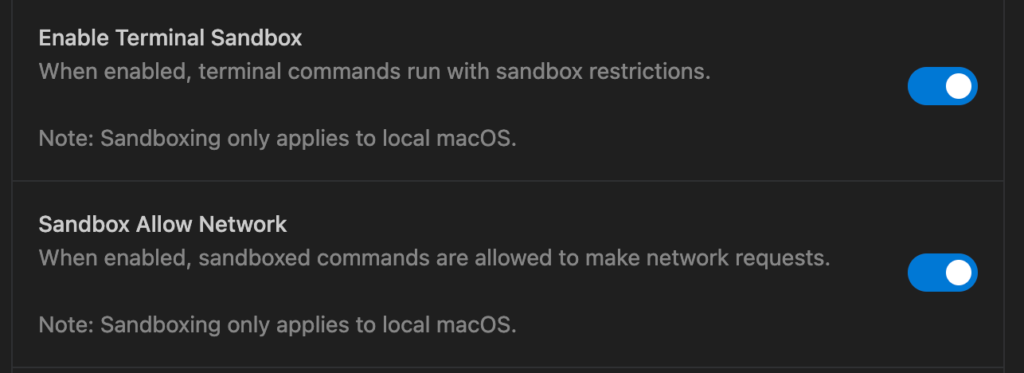
Enable Terminal Sandbox (macOS Only)
- What it does: Uses kernel-level isolation (Seatbelt) to restrict command access.
- The Benefit: Prevents the agent from reading your SSH keys, personal documents, or system logs.
- Security Verdict: Always keep this ON unless a specific toolchain is strictly incompatible.
Allowing the network enables you to make local servers and this is useful for testing sites on iPads, Android devices and iPhones.
Allow & Deny List Strategy
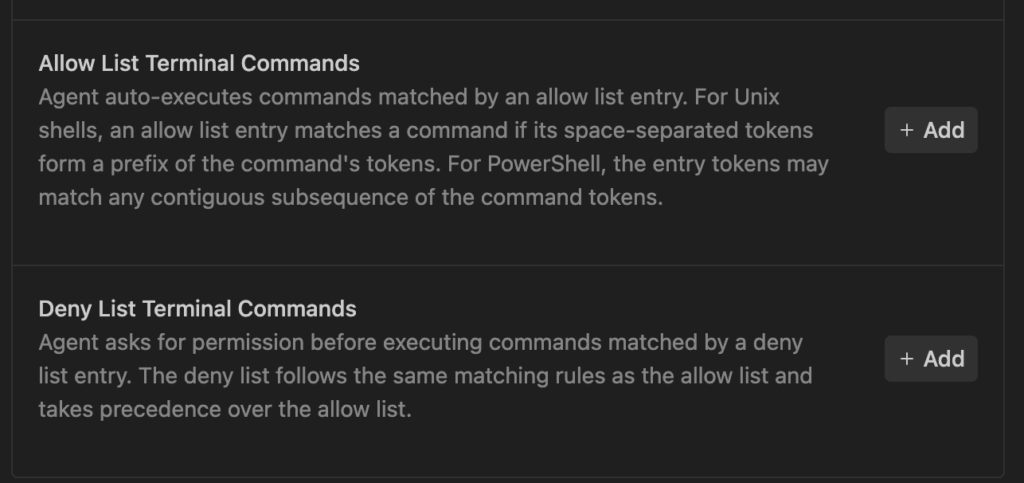
- Allow List (Prefixes): Safe commands like npm test, ls, or git status.
- Deny List (Hard Block): Commands that should always trigger a prompt, such as rm, git push, curl, and sudo.
- Note: In Strict Mode, the Allow List is ignored for maximum safety.
When configuring your Allow and Deny lists, use this table to understand what specific commands do and their associated risks.
| Command | Action | Risk Level | Strategy |
| ls / pwd | List files / Print directory | Low | Allow: Essential for agent orientation. |
| cat <file> | Read file contents | Low | Allow: Needed for the agent to understand code. |
| npm test | Run project test suite | Low | Allow: Enables fast TDD loops. |
| npm install | Install dependencies | Medium | Review: Can execute “post-install” scripts that are malicious. |
| git status | Show changed files | Low | Allow: Safe, read-only view of git state. |
| git push | Upload code to remote | High | Deny: Prevents data exfiltration to external repos. |
| curl / wget | Transfer data from/to URLs | Critical | Deny: Primary tool for downloading malware or leaking secrets. |
| rm -rf | Recursive delete | Critical | Deny: Prevents accidental or malicious mass deletion. |
| sudo | Execute as superuser | Critical | Deny: Never allow the agent root access automatically. |
| env / printenv | Show environment variables | High | Deny: Prevents printing secrets to the console logs. |
| docker | Manage containers | Medium | Review: Can be used to bypass local host security. |
📂 4. File Access & Data Leakage
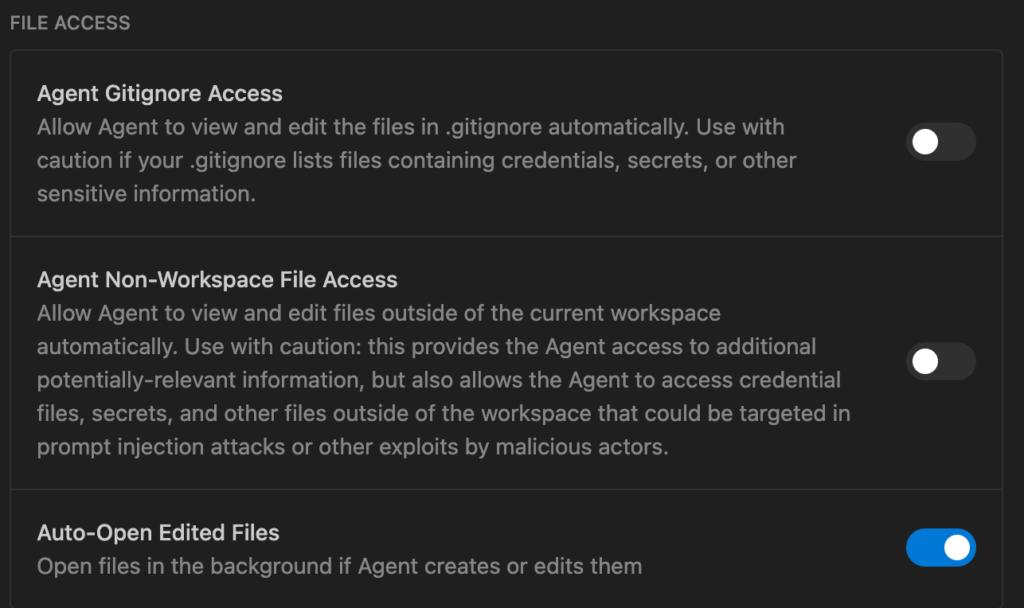
Agent Gitignore Access
- The Threat: .gitignore often hides .env files, credentials, and secrets.
- Risk: If enabled, the agent can read production secrets. If compromised by prompt injection, it could leak them.
- Recommendation: Keep DISABLED unless you specifically need the agent to manage environment variables.
Agent Non-Workspace File Access
- The Threat: Enables “Path Traversal.” A malicious file could trick the agent into reading your global SSH config or AWS credentials outside the current folder.
- Security Verdict: Keep OFF to lock the agent’s vision to the current project.
Auto-Open Edited Files
- Function: Opens files in the background when edited.
- Security Note: Low risk, but can be distracting if an agent makes mass changes across many files.
Security tip: I make an archive of my files before starting a session, so that I can easily rollback changes very quickly.
🤖 5. Automation & Persistence
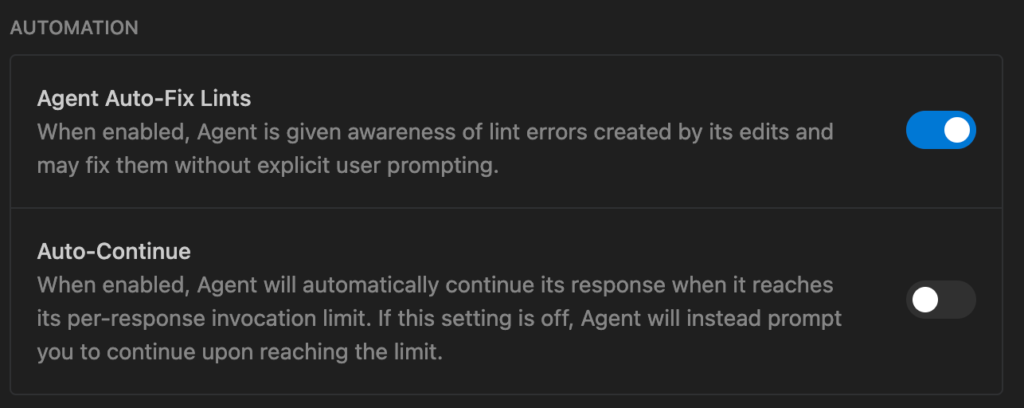
Agent Auto-Fix Lints
- Risk: Low. Mainly impacts code quality. Can occasionally cause “edit loops” if lint rules conflict with the agent’s output.
Auto-Continue
- Function: Automatically continues responses when invocation limits are reached.
- Security Note: If off, gives you a natural “pause point” to review progress before the agent continues a long-running task.
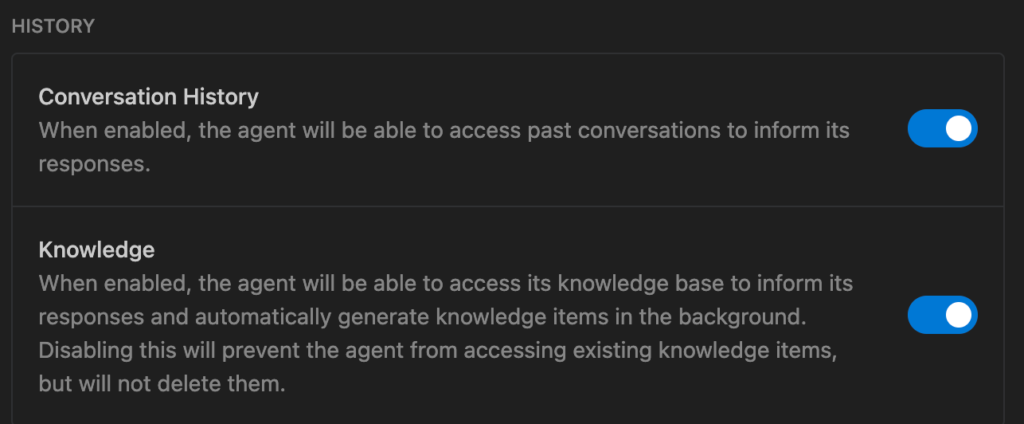
Conversation History & Knowledge
- The Threat: Sensitive data (passwords/keys) mentioned in past chats can be “remembered” and retrieved later by the agent, potentially during a session where a prompt injection is active.
- Mitigation: Regularly audit/clear “Knowledge” when moving between different security tiers.
🚦 Possible Profiles
| Feature | High Security (Untrusted Repos) | High Velocity (Trusted Work) |
| Strict Mode | ON | OFF |
| Terminal Execution | Request Review | Agent Decides / Allow List |
| Sandboxing | ON (No Network) | ON |
| Non-Workspace Access | OFF | OFF |
| Gitignore Access | OFF | ON (Use with caution) |
⚠️ The “Lethal Trifecta”
The highest risk occurs when the agent has:
- Access to private data (your files/secrets).
- Access to untrusted content (the repo/web).
- Ability to communicate externally (terminal/browser).
Use these settings to ensure you never have all three enabled at once.
