
Python Educator 2.0 is a browser-based tool designed to help teachers demonstrate, run and explain Python code clearly. It is especially useful for teaching common algorithmic thinking skills, such as loops, selection, searching, counting, totalling, finding averages, and tracing how variables change during a program.
Rather than simply showing students a block of code, Python Educator 2.0 gives teachers a way to make the thinking process visible. Code can be loaded from a URL, edited directly in the browser, run instantly, displayed in a cleaner teaching view, and traced step by step. This makes it useful both for live classroom demonstrations and for preparing resources that students can revisit later.
Getting started
When the page first opens, teachers can begin in several ways. The quickest option is to choose one of the ready-made iGCSE algorithm examples, such as Average, Bubble, Counting, For loop, If else, Linear, Max and min, Repeat, Totalling, or While loop. These examples are useful for introducing standard programming patterns without needing to prepare a file first.
Teachers can also start with a blank file, upload a local .py or .txt file, or paste the raw URL of a Python file. This is particularly useful if you already store examples on GitHub Gist or another location that provides a raw text link.
Once a file has been loaded, the page URL updates automatically. This means the exact code example can be shared with students as a link, making it easier for them to open the same program on their own device.
Loading code from GitHub Gist
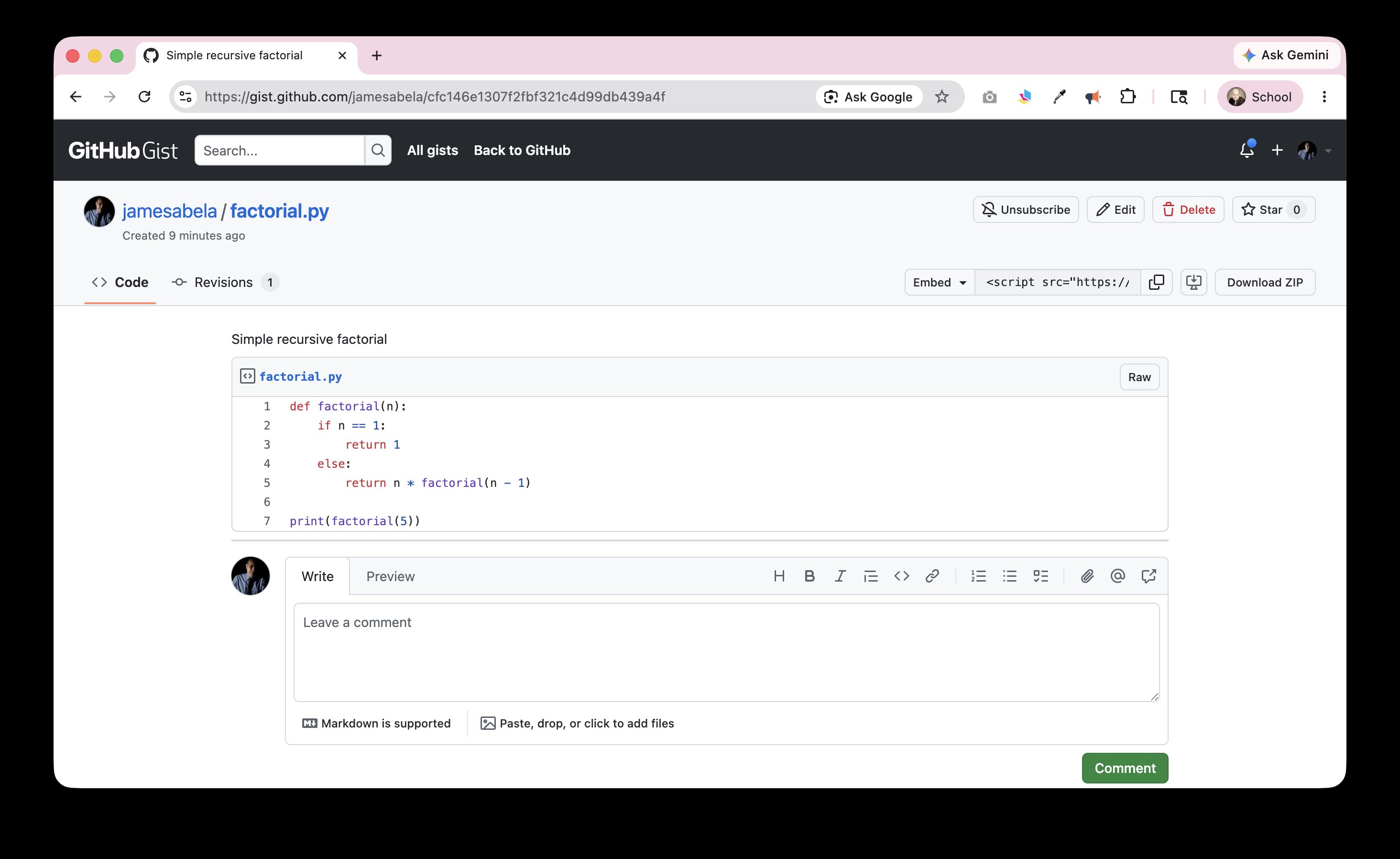
A useful workflow is to store short Python examples as GitHub Gists. To do this, create a new Gist, give the file a name ending in .py, paste in the code, and then use the Raw button to copy the raw file URL. This raw URL can then be pasted into Python Educator 2.0 using the Load Code box.
This is helpful for teachers because it allows a single prepared example to be reused across lessons, homework tasks, revision activities or shared resources. It also avoids the need for students to copy long blocks of code manually from a slide.
Edit Mode: for writing, testing and adapting code
Edit Mode is the main working mode. In this mode, students or teachers can edit the code directly, run it in the browser, copy it, download it as a .py file, download it as a .txt file, or turn the current code into a code-ordering puzzle.
This mode is best when students are actively modifying a program. For example, a teacher might begin with a working linear search example, ask students to change the list, alter the target value, or add extra output messages, and then run the program to test their changes.
The Run button executes the code in the browser and displays the output in the panel. If the program uses input(), the tool asks the user to type a value before continuing. This makes it suitable for simple classroom programs, including many introductory Python exercises.
There are some sensible limits. Python Educator 2.0 supports common modules such as random, math, statistics, datetime, and string. Programs using more complex libraries, graphics, external files, or unsupported imports should be downloaded and run in a local Python environment instead.
Display Mode: for explaining code line by line
Display Mode is designed for teaching from the front of the classroom. In this mode, the code is shown as a cleaner, non-editable display with syntax highlighting. This makes it easier to project on a large screen without students being distracted by editing controls.
The key advantage of Display Mode is tracing. Teachers can move through a program one step at a time using Play, Pause, Step, Back and Reset. As the trace progresses, the current line is highlighted, and the output, variables and function calls update alongside the code.
This is especially useful when teaching students how to read code rather than simply write it. For example, when explaining a loop, the teacher can pause after each iteration and ask students to predict the next value of a counter or total before stepping forward.
Making variables visible
One of the most useful features for teaching is the Variables panel. This shows the current values of variables as the program is traced. It helps students see that a variable is not just a name in the code, but a value that changes as the program runs.
This is particularly helpful for topics such as counters, running totals, loop variables, list values, function parameters and return values. Instead of asking students to imagine what is happening in memory, the teacher can show the changes directly.
The Call Trace panel is also useful when teaching functions and recursion. It shows function calls as they happen, helping students understand parameters, return values and the call stack. For recursive functions, this can make the idea of a function calling itself much easier to explain.
Using Python Educator 2.0 for classroom questioning
Python Educator 2.0 works well with prediction questions. Before pressing Step, the teacher can ask:
What line will run next?
What will this variable become?
How many times will this loop repeat?
What will be printed?
When will the condition become false?
What value will be returned from this function?
This turns tracing into an active learning activity rather than a passive demonstration. Students can answer on mini whiteboards, in a notebook, or through a classroom polling tool. The teacher then steps through the program to reveal the result.
Creating code-ordering puzzles
The Make Puzzle button turns the current code into a code-ordering activity. This is useful when students need to understand the sequence of an algorithm. For example, after teaching bubble sort, a teacher could load the example, make a puzzle, and ask students to reconstruct the correct order.
This works well as a retrieval activity because students must think about the structure of the algorithm rather than simply recognise the final answer.
Copy for Docs: preparing worksheets and assessments
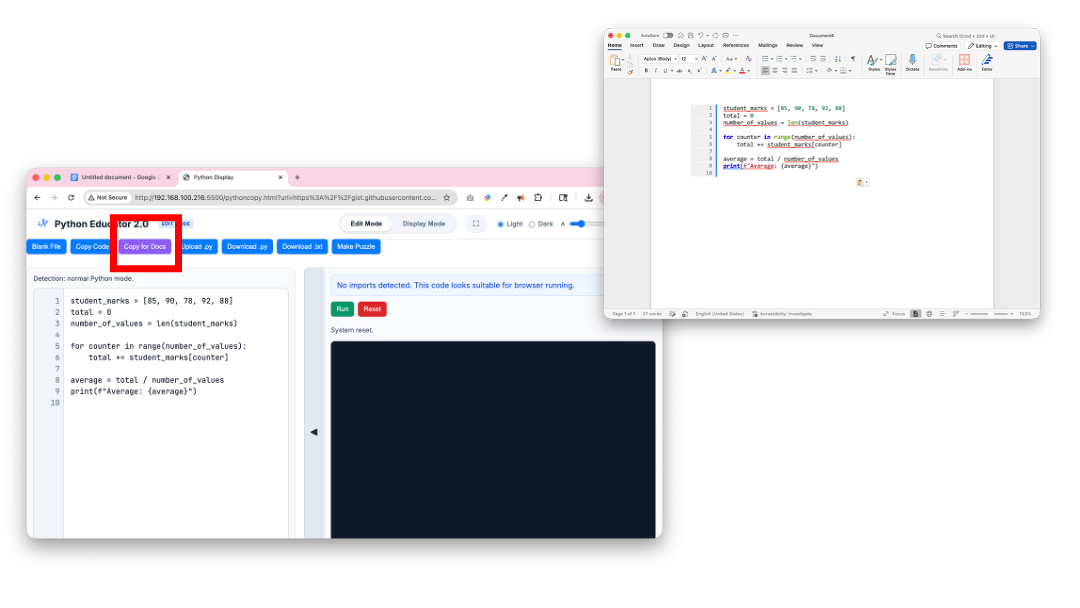
The Copy for Docs feature is designed for teachers preparing worksheets, documentation or assessments. It copies the code with formatting, syntax highlighting and line numbers so that it can be pasted neatly into Microsoft Word or Google Docs.
This is useful when preparing printed tasks, worked examples, exam-style questions or revision booklets. However, it should not be used when copying code into an IDE, because the line numbers and formatting may break the program. For code that students need to run, use the standard Copy Code button instead.
Practical teaching ideas
Python Educator 2.0 can be used at different points in a lesson. At the start, a teacher might use a ready-made algorithm as a retrieval task. In the main part of the lesson, Display Mode can be used to explain the logic step by step. Later, students can use Edit Mode to adapt the program and test their own changes.
For revision, the tool is particularly useful for common iGCSE and A Level programming patterns. Students can revisit standard algorithms, trace them line by line, and practise explaining what each section does. This supports both programming confidence and exam-style code comprehension.
It is also useful for live modelling. A teacher can begin with a blank file, build the solution gradually, run it frequently, and then switch into Display Mode to review how the final version works.
Why it is useful for teachers
Python Educator 2.0 helps bridge the gap between writing code and understanding code. Many students can copy a program, but struggle to explain what happens when it runs. The tracing tools, variable display and call trace make the hidden process more visible.
For teachers, the tool also reduces friction. There is no need for every student to have a full Python environment installed just to explore a short example. Code can be loaded from a link, edited in the browser, displayed clearly, run, traced, copied, downloaded or turned into a puzzle.
Used well, it can support explanation, modelling, questioning, independent practice and revision – all from the same simple web page.
You can try the tool here at any time: https://jamesabela.github.io/jsfun/pythoncopy
We have made it free and open source for all!
